BPM2OSC Manual
BPM2OSC is a real-time BPM detector that streams tempo data over OSC.
It captures audio from any input device — including system loopback — and sends
/bpm, /beat, /beat/bar, /bpm2osc/confidence,
and /resync messages to lighting consoles, VJ software, and show-control systems.
Quick Start
- Download and run the Windows installer from the download page.
- Launch BPM2OSC.
- Click ☰ to open Settings.
- Select your audio input device (or a loopback device to capture system output).
- Add an OSC target: set the IP and port of your destination software.
- Click Save.
- Click ▶ START. The BPM display will update as soon as the engine detects a stable tempo.
- Select a genre preset from the preset bar if the detected BPM looks wrong.
Installation
Windows installer (recommended)
Download BPM2OSC Setup and run it. The installer includes all required dependencies (sounddevice, NumPy, SciPy, python-osc, soundcard, pystray). No Python installation needed.
- Click More info in the SmartScreen dialog.
- Click Run anyway.
User Interface
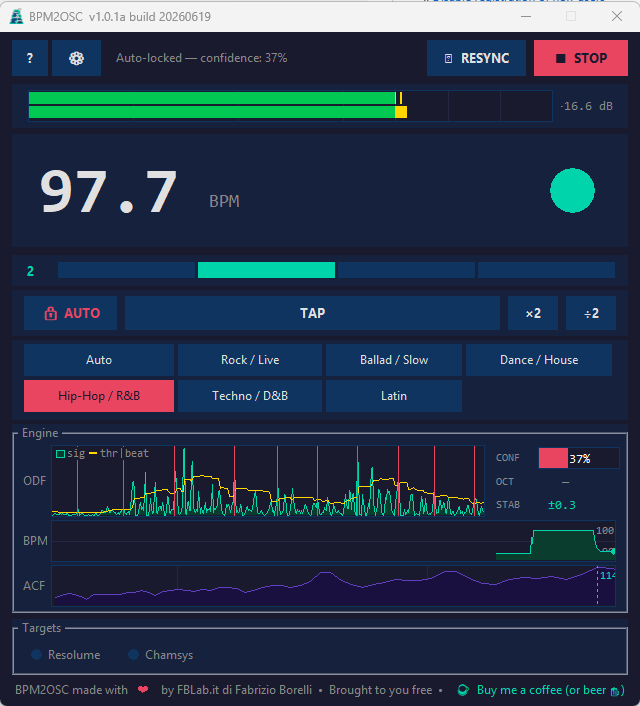
The main window is divided into these areas from top to bottom:
| Area | Description |
|---|---|
| Top bar | ☰ (Settings), ? (Manual / online help), ℹ (About), ⛶ (open the mini window), a transient status message, the CLICK icon, RESYNC, and START/STOP. |
| VU meter | Per-channel RMS bars with peak hold. Expands automatically for stereo and multi-channel devices. |
| BPM display | Large numeric BPM readout, BPM unit label, and beat-wheel animation (click to toggle between pie and dot mode). |
| Bar indicator | Beat counter (1–4) and four coloured segments showing position within the bar. |
| BPM controls | LOCK, TAP, ÷2, ×2 buttons. |
| Preset bar | One button per configured preset. The active preset is highlighted. |
| Engine panel | AlgoMonitor diagnostic widgets (ODF, BPM history, ACF curve, confidence, stability). |
| Targets panel | One indicator dot per OSC target. Flashes on every OSC send. |
Every area except the top bar can be hidden independently from Settings → Interface to save space on cramped multi-monitor or show-control setups — see Settings Reference.
System tray
Minimizing the window sends BPM2OSC to the system tray (Windows, requires pystray). Right-click the tray icon for Start/Stop, Resync, and Quit. The tray tooltip shows the current BPM in real time.
Mini window
Click ⛶ in the top bar to switch to a small, freely resizable BPM-only window — useful when the full window doesn't fit alongside other show-control software on the same screen.
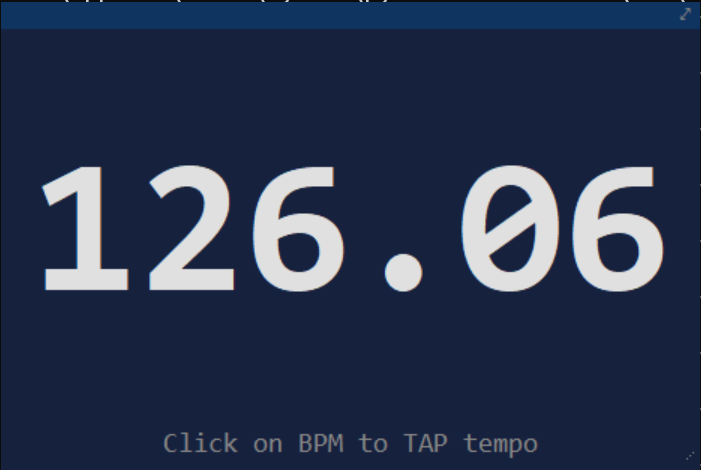
- The BPM digits scale dynamically to whatever size you resize the window to.
- Click the BPM digits to TAP tempo directly from the mini window.
- A thin drag strip replaces the OS title bar and doubles as a drag handle; a button on it returns to the main window.
- Enable Tiny window always on top in Settings to keep it pinned above other windows.
Audio Input
Open Settings → Audio Input to select the audio source. BPM2OSC supports two capture modes:
Microphone / audio interface
Any device recognized by PortAudio (via sounddevice) appears in the device list.
This includes USB audio interfaces, line-in inputs, built-in microphones, and virtual audio cables.
Use a line-in connection from a mixer or DJ controller for the most stable results.
System loopback (Windows only)
Loopback devices appear in the list prefixed with ⟲.
Selecting one captures whatever is playing through that output — no cable needed.
Internally this uses the SoundCard
WASAPI loopback API.
Buffer size and latency
| Buffer | Latency @44100 Hz | Best for |
|---|---|---|
| 128 | ~3 ms | Immediate VU monitoring; BPM less stable on sparse signals |
| 256 | ~6 ms | DJ sets with fast tempo changes |
| 512 | ~12 ms | Live events with a stable BPM ✓ recommended default |
| 1024 | ~23 ms | Maximum BPM stability; barely perceptible lag |
| 2048 | ~46 ms | Very irregular or sparse signals |
Smoothing
Controls the depth of the BPM median filter (number of frames kept in history). Higher values produce a steadier readout but react more slowly to genuine tempo changes. The default of 5 is a good balance for most live situations.
BPM Controls
÷2 and ×2
Halve or double the BPM reported by the engine. Useful when the genre's rhythmic pattern causes the engine to lock to a subdivision (double tempo) or a macro-beat (half tempo).
When active, the ÷2 / ×2 buttons light up in the accent colour. If a multiplier override timeout is configured (Settings → BPM Override), the buttons blink during the last 3 seconds before expiry. Setting the timeout to 0 makes the multiplier permanent until manually reset.
The multiplier stacks symmetrically in both directions. Each ×2 press doubles the current factor (maximum ×4); each ÷2 press halves it (minimum ÷4). Starting from ×1: pressing ÷2 gives half tempo (÷2), pressing again gives quarter tempo (÷4). Pressing ×2 from ÷2 returns to ×1.
TAP tempo
Click TAP repeatedly in time with the beat to set the BPM manually. BPM2OSC averages the intervals between the last 8 taps. If more than 2.5 seconds pass between taps, the history is reset and you start a new sequence.
The TAP override expires after the configured TAP override secs (default: 0 = permanent). Setting it to 0 keeps the TAP tempo indefinitely until you tap again or press RESYNC.
Prior override
When you tap, BPM2OSC does more than snap the BPM display — it also permanently overrides the ACF Gaussian prior to the tapped value. The prior is the "gravity centre" of the detection algorithm: shifting it to the tapped BPM makes the engine converge faster and stay anchored near that tempo even under noisy conditions.
The override is shown in the AlgoMonitor → PRIOR BPM row as 130 (Override) in amber. A ✕ button next to the label clears the override and restores the preset's original prior. The override is also cleared automatically when you switch preset. While the override is active, the automatic prior self-anchoring (Adaptive mode) is suppressed — the tap value takes full priority.
TAP guide window
When a TAP prior override is active, BPM2OSC can optionally narrow the ACF search range to a window of ± N % around the tapped BPM, excluding tempos that are too far away from the target. This reduces false peaks from noise or harmonics.
Configure the window in Settings → BPM Override → TAP guide window ± % (default: 10 %). Set to 0 to disable the constraint and keep the full preset BPM range. Typical values: 5 % for tight lock on a known tempo, 10–15 % to allow a few BPM of natural variation.
LOCK and AUTO
LOCK freezes the current BPM, preventing the engine from updating the display
and OSC output. The button shows a closed padlock icon 🔒 LOCK while active.
Click it again to unlock.
AUTO-LOCK is a confidence-based automatic freeze. When enabled (Settings →
BPM Override → Auto-lock below confidence %), the engine monitors its own confidence
score and freezes the BPM whenever it falls below the threshold. The button shows
🔒 AUTO (with a coloured label) while the auto-lock is active.
The status bar shows the current confidence percentage.
RESYNC
Forces the internal metronome to realign its phase to the next engine-detected beat.
Use this when the bar indicator has drifted out of sync with the music.
RESYNC also sends a /resync 1 OSC message to all enabled targets.
Under normal conditions you should rarely need to press RESYNC — the engine continuously corrects the metronome phase using complex DFT beat-phase estimation.
Engine Presets
A preset is a named set of five engine parameters: BPM search range
(min and max), Gaussian prior centre (prior),
and the octave-correction gates (×2 gate and ÷2 gate).
Click any preset button in the preset bar to apply it live — no restart needed. The active preset is highlighted. You can also edit the five numeric values individually in Settings without changing the preset name.
| Preset | min BPM | max BPM | prior | ×2 gate | ÷2 gate | Typical use |
|---|---|---|---|---|---|---|
| Auto | 60 | 200 | 120 | 155 | 90 | Default — most genres |
| Rock / Live | 65 | 155 | 100 | 128 | 95 | Rock, pop, live events |
| Ballad / Slow | 50 | 105 | 72 | 105 | 60 | Slow songs, folk, cinematic |
| Dance / House | 115 | 145 | 126 | 155 | 80 | House, nu-disco, French touch |
| Hip-Hop / R&B | 70 | 115 | 90 | 115 | 80 | Hip-hop, trap, R&B |
| Techno / D&B | 130 | 185 | 158 | 185 | 90 | Techno, drum & bass, hardstyle |
| Latin | 85 | 125 | 100 | 128 | 90 | Salsa, reggaeton, cumbia |
What each parameter does
- min / max BPM — defines the search range for the ACF peak. Values outside this range are ignored even if the ACF scores them highly.
- prior — centre of a gentle Gaussian bias added to ACF scores. Slightly favours the expected tempo without overriding the data. Effect is small (±15% weight).
- ×2 gate — BPM threshold above which the ×2 octave correction is allowed. If the detected BPM exceeds this gate, the engine checks whether the half-tempo lag scores ≥ 75% as high and, if so, halves the result.
- ÷2 gate — BPM threshold below which the ÷2 correction is allowed. If the detected BPM falls below this gate, the engine checks the double-tempo lag similarly.
Creating and editing presets
In Settings → Engine Presets you can add new presets, rename existing ones, edit their five parameters, or delete them. Factory presets (built-in) can be reset to their defaults with the ⟳ button. Custom presets are stored in the config file.
AlgoMonitor
The Engine panel contains four real-time diagnostic widgets that expose the internal state of the detection algorithm. Updated at ~50 fps.
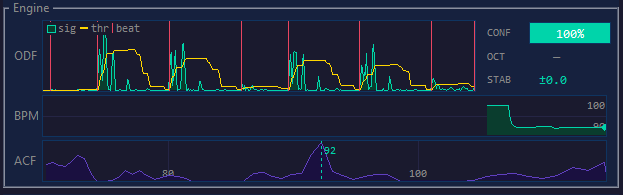
ODF waveform (top row)
| Element | Colour | Meaning |
|---|---|---|
| Filled polygon | Dark green | Area under the Superflux ODF signal |
| sig line | Bright green | Per-frame ODF value (spectral flux) |
| thr line | Amber | Adaptive threshold: avg + 1.5 × σ over the last 43 frames |
| beat tick | Red | Detected onset — labeled "beat" in the on-canvas legend |
Right panel
| Widget | Meaning |
|---|---|
| CONFIDENCE bar | ACF confidence from 0% (red) to 100% (green). Below ~40%: engine uncertain. Above ~70%: strong signal. |
| OCTAVE badge | Octave correction last applied: ×2, ÷2, 4:3, or — (none). Badge background turns red when active. |
| STABILITY ±value | Standard deviation of the last 20 BPM estimates (2 decimal places). Green <0.1 BPM, amber <0.5 BPM, red ≥ 0.5 BPM. |
| PRECISION badge | Active precision state: SYNC (amber, beat-grid calibrating), NORM (dim, Kalman only), HIGH (green, beat-grid regression contributing to output). |
| PRIOR BPM |
The ACF prior (gravity centre of the detection). Three states:
|
BPM history graph (middle row)
Green filled chart of BPM estimates over the last ~40 seconds. The Y-axis auto-scales to the observed range ± 2 BPM. A green dot at the right edge marks the current BPM. Use this to spot drifts, jumps, or oscillations between two tempos.
ACF score curve (bottom row)
Purple curve showing the full ACF harmonic-sum scores across the BPM search range. The X-axis spans from min BPM to max BPM; vertical grid lines mark every 20 BPM. A green dashed vertical line marks the detected peak BPM with a numeric label.
A sharp, isolated peak means the engine is confident. A broad or multi-modal curve means the signal is ambiguous — consider enabling auto-lock.
sig line rarely crosses
thr, the audio level is too low — check gain. If CONFIDENCE is chronically low but
beats are clearly audible, switch preset. If OCTAVE shows ÷2 constantly, you're
in the wrong preset range — try one with a higher prior. PRECISION HIGH means
the beat-grid is locked and sub-0.01 BPM accuracy is active.
OSC Targets
BPM2OSC can send to any number of OSC destinations simultaneously. Each target is configured independently. Open Settings → OSC Targets and click + Add target to create a new one.
| Field | Default | Notes |
|---|---|---|
| Name | — | Display label shown in the target dot and Settings list. |
| IP | 127.0.0.1 | Destination IP address or hostname. |
| Port | 8000 | UDP or TCP port on the destination. |
| Protocol | UDP | UDP (fire-and-forget) or TCP (reliable, auto-reconnect every 15 s). |
| BPM path | /bpm | OSC address for the BPM float message. |
| Beat path | /beat | OSC address for the beat trigger (int 1). |
| Bar path | /beat/bar | OSC address for the bar-beat position (int 1–4). |
| Conf path | /bpm2osc/confidence | OSC address for the confidence float (0.0–1.0). |
| Resync path | /resync | OSC address for the resync trigger (int 1). |
| Send BPM | on | Enable/disable BPM messages for this target independently. |
| Send Beat | on | Enable/disable beat messages for this target. |
| Send Bar | on | Enable/disable bar-beat messages for this target. |
| Send Conf | off | Enable/disable confidence messages. Off by default — high send rate (~43 Hz). |
| Send Resync | on | Enable/disable resync messages for this target. |
| Normalize BPM | off | Map BPM to a 0.0–1.0 float before sending. |
| Norm min / max | 20 / 500 | BPM range for the normalization mapping. |
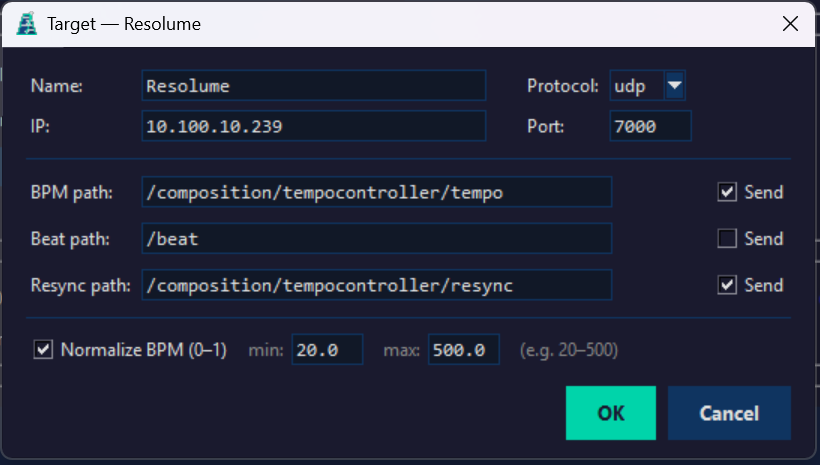
OSC target edit dialog — Resolume example with BPM normalization enabled
Target dot indicators
Each target has a coloured dot in the main window Targets panel:
- ● Dark blue — idle (no recent send)
- ● Yellow flash — UDP send in progress
- ● Green flash — TCP send in progress
- ✕ Grey with red X — TCP connection error (reconnecting automatically every 15 s)
OSC Messages
Normalized BPM
When Normalize BPM is enabled on a target, the BPM float is mapped linearly
to the range [0.0, 1.0] using:
value = (bpm - norm_min) / (norm_max - norm_min)
value = clamp(value, 0.0, 1.0)
With defaults (min=20, max=500): 120 BPM → 0.21, 200 BPM → 0.38.
Adjust min and max to match your software's expected range.
Web UI
BPM2OSC includes a built-in web server that runs automatically at launch and serves a
real-time remote control page at http://<host>:5000.
You can open it from any browser on the same local network — PC, tablet, or phone —
without installing anything.
What you see
| Panel | Description |
|---|---|
| BPM display | Large real-time BPM value and animated beat-wheel (pie clock). |
| Controls | START/STOP, RESYNC, TAP, LOCK, ÷2, ×2 buttons — fully functional. |
| Bar indicator | Beat counter (1–4) and four coloured segments — matches the desktop. |
| VU meter | Per-channel RMS level bars with green / yellow / red zones. |
| Engine monitor | Live ODF flux graph, confidence bar, and octave-correction badge. |
| Presets | One button per preset; the active one is highlighted. Tap to switch. |
Accessing the page
- Launch BPM2OSC — the web server starts immediately.
- Open
http://127.0.0.1:5000on the same machine, orhttp://<LAN-IP>:5000from another device. - The connection dot in the top-right corner turns green when the live stream is active.
ipconfig. For a stable
tablet setup, pin the URL to your home screen or bookmark it in a kiosk browser.
Web Server settings
Open Settings → Web Server to configure:
| Parameter | Default | Notes |
|---|---|---|
| Enable web server | on | Uncheck to disable the web server entirely. |
| Port | 5000 | TCP port the server listens on. Change if 5000 conflicts with another service. |
Changes to Web Server settings take effect on the next launch of BPM2OSC.
REST API
Every control is also available as an HTTP POST endpoint, making the web server suitable for integration with Bitfocus Companion, home-automation systems, or custom scripts:
| Endpoint | Action |
|---|---|
POST /api/start | Start the BPM engine |
POST /api/stop | Stop the BPM engine |
POST /api/resync | Resync beat phase |
POST /api/lock | Toggle BPM lock |
POST /api/div2 | Apply ÷2 factor |
POST /api/mul2 | Apply ×2 factor |
POST /api/tap | Tap tempo |
POST /api/preset/<name> | Activate a named preset (URL-encoded) |
GET /api/state | Full JSON snapshot of current state |
GET /api/stream | SSE stream — JSON state pushed every 50 ms |
Example from the command line:
curl -X POST http://127.0.0.1:5000/api/start
curl -X POST http://127.0.0.1:5000/api/preset/Rock%20%2F%20Live
Settings Reference
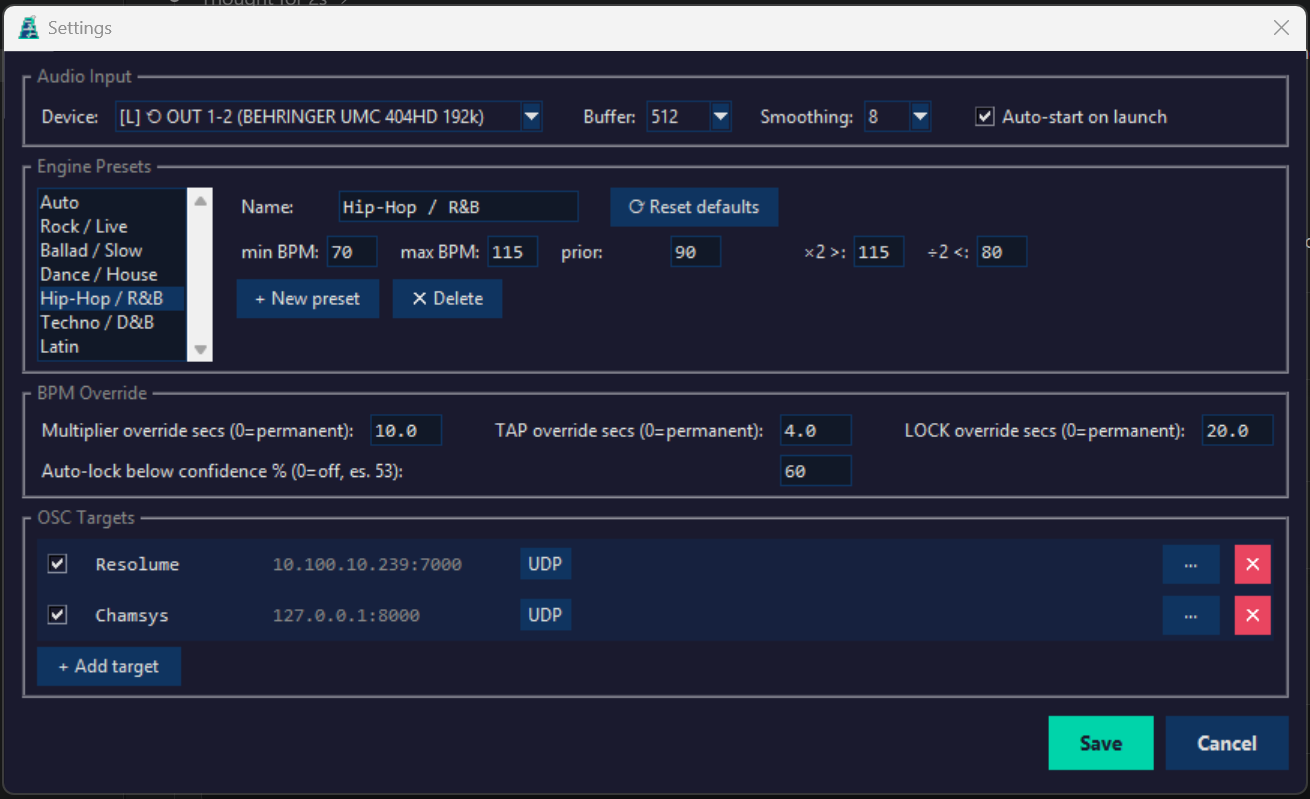
Audio Input
| Parameter | Default | Notes |
|---|---|---|
| API | System default | Shown only when more than one host API is available (Windows: MME, DirectSound, WASAPI, WDM-KS, Loopback). Picking one filters the Device list to that API only. |
| Device | System default | All input devices + loopback (Windows). Loopback devices use the Loopback (WASAPI) API and are listed with their channel count, e.g. "OUT 1-2 (BEHRINGER UMC 404HD 192k), 2". |
| Ch: | — | Read-only field mirroring the input channel count of the currently selected device. |
| Buffer size | 512 | Audio processing block size in samples. Larger = more stable BPM, higher latency. |
| Smoothing | 5 | Depth of the BPM median filter (number of estimates kept in history). |
| Auto-start on launch | off | If enabled, detection starts automatically when BPM2OSC launches. |
Click
Configures the audible metronome click triggered by the CLICK button next to RESYNC. It is independent from the Audio Input device — you can monitor via loopback while the click plays out to your speakers or a separate output.
| Parameter | Default | Notes |
|---|---|---|
| API | System default | Output host API for the click device, shown only when more than one is available. |
| Device | System default | Output device that plays the click. |
| Volume | 0.5 | Click loudness, independent of the input gain. |
Web Server
| Parameter | Default | Notes |
|---|---|---|
| Enable web server | on | Serves the Web UI and REST API. Disable if not needed or to free the port. |
| Port | 5000 | TCP port. Must not be in use by another service. Change takes effect on next launch. |
BPM Override
| Parameter | Default | Notes |
|---|---|---|
| Multiplier override secs | 0 | How long ÷2/×2 stays active (seconds). 0 = permanent until manually reset. |
| TAP override secs | 0 | How long a TAP override stays active. 0 = permanent until next TAP or RESYNC. |
| TAP guide window ± % | 10 | When a TAP prior override is active, narrows the ACF search to ± N % around the tapped BPM. 0 = disabled (full preset range). Typical: 5 % for tight lock, 10–15 % for natural variation. |
| LOCK override secs | 0 | How long a manual LOCK stays active. 0 = permanent until unlocked. |
| Auto-lock confidence % | 0 | Confidence threshold for auto-lock (0–100). 0 = disabled. Values 40–65 are typical. |
| No-beat hold | off | When enabled, the metronome and OSC beat continue at the last detected BPM even when no beat is detected. When off, the metronome stops and the display shows --- after ~5 s of low confidence. |
Interface
Independently hide parts of the main window to save vertical space on cramped multi-monitor or show-control setups. The window resizes to fit whatever's left visible.
| Parameter | Default | Notes |
|---|---|---|
| Show VU meter | on | Per-channel input level bars. |
| Show beat indicator | on | BPM pie/dot beat-wheel animation. |
| Show Engine monitor | on | The AlgoMonitor diagnostic panel (ODF, BPM history, ACF curve). |
| Show metronome | on | The bar-position indicator (beat counter and four coloured segments) — not the same as the CLICK icon below. |
| Show click icon | on | The audio click on/off button. Hiding it while the click is playing stops the click first. |
| Show presets | on | The preset button bar. |
| Show Targets panel | on | The OSC target indicator dots. |
| Tiny window always on top | off | Keeps the ⛶ mini window pinned above other windows. |
Config File
Settings are saved automatically to:
%APPDATA%\BPM2OSC\bpm2osc.json
The file is updated every time you click Save in Settings and on every clean shutdown. You can edit it manually with any text editor. Invalid values are silently ignored and replaced with defaults on the next launch.
{
  "audio_device_name": "Focusrite USB Audio",
  "audio_hostapi_name": "Windows WASAPI",
  "audio_loopback": false,
  "click_hostapi_name": "Windows WASAPI",
  "click_device_name": "Speakers",
  "click_volume": 0.5,
  "buffer_size": 512,
  "smoothing": 5,
  "autostart": false,
  "auto_lock_confidence": 0.53,
  "multiplier_override_secs": 0.0,
  "tap_override_secs": 4.0,
  "tap_guide_pct": 10.0,
  "lock_override_secs": 0.0,
  "metro_hold_on_nobeat": false,
  "web_enabled": true,
  "web_port": 5000,
  "preset": "Rock / Live",
  "min_bpm": 65,
  "max_bpm": 155,
  "prior_bpm": 100,
  "mul2_gate": 128,
  "div2_gate": 95,
  "targets": [
    {
      "name": "MagicQ",
      "ip": "192.168.1.100",
      "port": 8000,
      "protocol": "udp",
      "bpm_path": "/bpm",
      "beat_path": "/beat",
      "bar_path": "/beat/bar",
      "conf_path": "/bpm2osc/confidence",
      "resync_path": "/resync",
      "send_bpm": true,
      "send_beat": true,
      "send_bar": true,
      "send_conf": false,
      "send_resync": true,
      "enabled": true,
      "bpm_normalize": false,
      "bpm_norm_min": 20.0,
      "bpm_norm_max": 500.0
    }
  ]
}
Integrations
Bitfocus Companion
BPM2OSC integrates with Bitfocus Companion (the software that drives Elgato Stream Deck and other button controllers) at two levels:
- Commands — Companion sends HTTP POST requests to BPM2OSC's REST API to trigger actions (start, stop, tap, preset, etc.)
- Feedback — BPM2OSC pushes live state to Companion so Stream Deck buttons reflect current status (BPM on button label, running = green, locked = red, etc.)
Option A — Native Companion Module (recommended)
A dedicated companion-module-bpm2osc module is available on GitHub. It provides ready-made actions, feedbacks, variables, and Stream Deck button presets.
Installation (temporary — until marketplace approval):
- Download FBLab.it-BPM2OSC-v1.0.0.tgz from GitHub.
- Extract the archive to a permanent local folder (e.g.
C:\companion-modules\BPM2OSC). - In Companion, open Settings → Developer extras → Developer modules path and point it to that folder.
- Restart Companion.
- Create a new connection of type BPM2OSC and set host/port to match your BPM2OSC machine.
Available actions:
| Action | Description |
|---|---|
| Start Engine | Start BPM detection |
| Stop Engine | Stop BPM detection |
| Toggle Start / Stop | Toggle between running and stopped |
| Resync Beat | Reset beat phase |
| Toggle Lock BPM | Engage or release manual BPM lock |
| BPM ÷2 | Apply half-tempo factor |
| BPM ×2 | Apply double-tempo factor |
| Tap Tempo | Tap tempo input |
| Apply Preset | Switch to a named engine preset |
Available feedbacks (button visual states):
| Feedback | Triggers when… | Default style |
|---|---|---|
| Engine Running | Detection is active | Green background |
| Engine Stopped | Detection is not active | Dark red background |
| BPM Locked (manual) | Operator has locked BPM manually | Red background |
| BPM Auto-Locked | Auto-lock engaged by confidence | Dark blue / accent text |
| BPM Factor Active | ÷2 or ×2 is applied | Orange background |
| Specific Preset Active | Named preset is selected | Teal text on dark blue |
| Confidence Above Threshold | Confidence % exceeds a set value | Dark green background |
Available variables (use in button labels):
| Variable | Example value |
|---|---|
$(bpm2osc:bpm) | 126.0 |
$(bpm2osc:running) | true |
$(bpm2osc:locked) | false |
$(bpm2osc:confidence) | 87% |
$(bpm2osc:preset) | Rock / Live |
$(bpm2osc:factor) | 1 / ÷2 / ×2 |
$(bpm2osc:bar_beat) | 1–4 |
/api/stream) for real-time updates —
variables and feedbacks refresh within ~50 ms of any state change, with no polling overhead.
If the connection drops, the module auto-reconnects after 3 s.
Option B — Generic HTTP module (no module install)
Without the BPM2OSC module, you can still send commands from Companion using the built-in Generic HTTP module:
- In Companion, add a connection of type Generic HTTP.
- Set Base URL to
http://<BPM2OSC-IP>:5000. - Create buttons with actions POST to paths like
/api/start,/api/tap, etc.
Feedback (button color/label updates) is not available in this mode — use the native module for full integration.
ChamSys MagicQ
MagicQ does not accept BPM values via OSC. The correct approach is to map the
/beat OSC message to a Speed Master Tap function
via the Automation window. This makes MagicQ tap-tempo its Speed Master on every
beat, keeping chase speeds locked to the music.
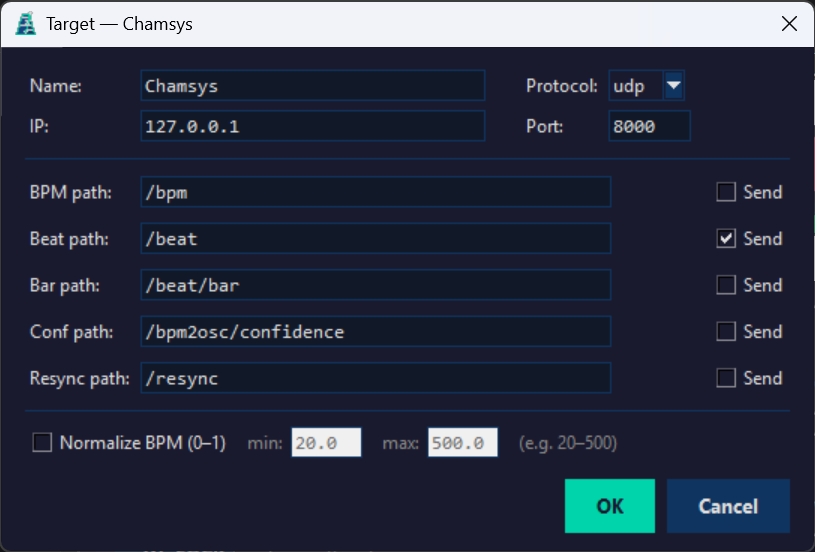
OSC target edit dialog — ChamSys MagicQ example: only Beat is sent
On the MagicQ side — one-time setup:
- Setup → Network → OSC → enable OSC RX, port
8000 - Open Macro → View Autom
- Add a new row (press the Insert soft-button or Add)
- Set Type =
OSC - Set P1 =
/beat(the OSC address BPM2OSC sends) - Set Function =
Speed Master Tap - Set P2 =
1(Speed Master ID — SP1; change if you use a different Speed Master) - In each Cue Stack that should follow the beat, set Speed Master = SP1
From this point on, every /beat message from BPM2OSC will tap the Speed Master,
and all cue stacks assigned to SP1 will chase in sync with the music.
In BPM2OSC:
- IP: MagicQ machine's IP address (or
127.0.0.1if on the same machine) - Port:
8000 - Protocol: UDP
- Send BPM: off — Send Beat: on
- Beat path:
/beat
Resolume Arena / Avenue
In BPM2OSC — OSC target settings:
- IP: Resolume machine's IP address
- Port:
7000(Resolume default OSC input port) - Protocol: UDP
- BPM path:
/composition/tempocontroller/tempo— Send ✓ - Beat path:
/beat— Send off (Resolume handles its own beat grid) - Resync path:
/composition/tempocontroller/resync— Send ✓ - Enable Normalize BPM (0–1), min:
20.0, max:500.0
On the Resolume side:
- Preferences → OSC → enable OSC input on port 7000
- The tempo controller path
/composition/tempocontroller/tempois built-in — no mapping needed - Resolume expects a normalized 0–1 value for tempo, hence the BPM normalization above
/composition/tempocontroller/resync
triggers Resolume's internal beat-grid reset, keeping its visuals phase-locked to the music
when the operator presses RESYNC in BPM2OSC.
Generic OSC (Bitfocus Companion, QLab, etc.)
Any software that can receive OSC over UDP or TCP will work. Point BPM2OSC at the destination IP and port, configure the OSC paths to match what the target software expects, and enable or disable individual message types (BPM, beat, resync) as needed.
Common use cases:
- Bitfocus Companion: see the dedicated Companion section for the native module with full feedback and variables support
- QLab: use
/bpmto feed tempo to a click track or time-based cue - TouchDesigner / vvvv: use
/bpmand/beatto drive generative visuals - MIDI-to-OSC bridges: convert
/beatto a MIDI clock pulse
127.0.0.1 and open any OSC monitor
(e.g. Protokol) on the same port
to verify messages before connecting real hardware.
Troubleshooting
BPM display shows wrong value
- Try a different genre preset. Most detection errors are octave mistakes fixed by the right preset.
- Check the AlgoMonitor ACF curve: if the peak is at a different position than expected, the prior may be pulling it. Adjust the preset's prior BPM.
- Lower the buffer size if the display lags noticeably behind the music.
- Increase the buffer size if the display oscillates between two values.
- Use TAP to override temporarily while adjusting settings.
CONF bar stays low (red / yellow)
- The audio level may be too low. Check the VU meter — the bars should reach the green zone on the beat.
- Sparse percussion (breakbeats, half-time) is harder to detect. Try the Hip-Hop preset and enable auto-lock at ~50%.
- During breakdowns or DJ transitions low confidence is expected — enable auto-lock to prevent the display from drifting.
No audio devices visible
- Make sure your audio interface or microphone is plugged in before starting BPM2OSC.
- On Windows, check that the device is not set to exclusive mode by another application.
- Loopback devices require the output device to be active (playing audio).
OSC not received by the destination
- Check IP address and port. On a single machine use
127.0.0.1; for network targets use the machine's LAN IP. - Check that no firewall is blocking UDP/TCP on the destination port.
- Use an OSC monitor (e.g. Protokol) on the same machine as the destination to confirm packets arrive.
- TCP targets show a connection error (grey dot with X) if they can't connect — verify the destination is listening before starting BPM2OSC.
Application doesn't start
- Reinstalling BPM2OSC usually fixes startup issues — download the installer again from the website.
- Check that
%APPDATA%\BPM2OSC\bpm2osc.jsonis not corrupted. Delete it to reset to defaults.
What's New
v2.10.1f — 8 July 2026 (feature release)
- Mini window — small, freely resizable BPM-only readout (⛶ button): tap tempo from the BPM digits, draggable borderless mode, optional always-on-top. See Mini window.
- Hover tooltips on top-bar buttons, BPM controls, beat indicator and AlgoMonitor readouts, reviewed for clarity and accuracy.
- Show/hide UI panels — independently hide the VU meter, beat indicator, AlgoMonitor, metronome bar, click icon, presets or Targets panel; the window resizes to fit. See Settings Reference → Interface.
- Click icon redesigned as a compact metronome-style icon; removed the bottom donate line (still in the About dialog).
- Bug fixes — ODF graph no longer leaves a blank gap on wide panels; "hide metronome" toggle no longer affects the click icon (now separate toggles); RESYNC no longer causes the click to double-fire; top-bar icon sizing made consistent.
v2.8.1f — 6 July 2026 (feature release)
- Audio click — new CLICK button plays an audible, phase-locked click on every beat, with downbeat accent, independent output device/API/volume settings, and loopback feedback protection. Latency is self-calibrated per device for accurate sync.
- Settings — API selector to de-duplicate audio devices listed once per host API (MME/DirectSound/WASAPI/WDM-KS); device channel count now shown.
- Bug fixes — sample-clock drift correction for both standard input and Loopback capture (was reading a slightly wrong BPM); fixed WASAPI "Unanticipated host error" via automatic host-API retry; fixed VU meter always showing 1 channel; fixed app freeze and occasional double/triple click firing on click-enable; fixed status text overlapping the CLICK button and the window resizing itself unexpectedly.
v2.7.8 — 30 June 2026 (feature release)
- Tap Tempo prior override — TAP now permanently overrides the ACF prior BPM until the preset changes or it's manually cleared, shown in the Engine monitor as PRIOR BPM (Preset/Adaptive/Override); the guide window around the tapped BPM is now configurable in Settings.
- Bug fixes — ACF lag search no longer truncates the minimum reachable BPM at preset boundaries; reduced DFT refinement overshoot chasing false harmonic peaks; fixed overlapping Settings fields and overdrawn ACF grid labels.
v2.6.5 — 30 June 2026 (bugfix release)
- Bug fixes — metronome no longer chases live phase estimates while the BPM is locked; fixed octave-correction instability that caused the BPM to oscillate between octaves on tracks with a strong eighth-note pulse.
v2.6.3 — 28 June 2026 (feature release)
- Precision engine upgrade — DFT frequency refinement (±0.1 → ±0.002 BPM), beat-grid regression blended with the Kalman estimate, adaptive Kalman precision mode after sustained high confidence, and output resolution raised to 0.01 BPM.
- AlgoMonitor — new PRECISION row (SYNC/NORM/HIGH); STABILITY now shown to 0.01 BPM.
v2.5.0 — 27 June 2026 (feature release)
- Web UI & Bitfocus Companion integration — built-in web server with a browser remote-control page (BPM, beat wheel, VU meter, engine monitor, presets) and a REST API Companion can drive via its Generic HTTP module.
- Higher BPM precision & stability — harmonic sum extended to k=16, confidence via median noise floor, adaptive Kalman noise scaling, and a dead-band filter for a stable displayed BPM.
- No-beat hold option — keep the last BPM instead of stopping when confidence drops.
- Bug fixes — octave correction now actually commits (gate-driven multipath hypothesis); metronome/OSC properly stop and restart on no-beat with auto-lock hysteresis and a large-jump guard; fewer false fast-adapt snaps during track changes; preset changes reset the Kalman filter; fixed beat-wheel glitch and hold-BPM display bug.
v2.0.1a — 25 June 2026 (bugfix release)
- Breakdown hold (Gate 3) — low-confidence frames are discarded once the Kalman filter is initialised, preventing hi-hat/pad periodicities from drifting the BPM during breakdowns or DJ transitions.
- Tempo inertia hardening and auto-preset smart gate narrowing reduce the need for manual preset selection and wrong large BPM jumps.
- Per-target OSC Confidence/Bar-beat paths, each independently configurable and opt-in.
v2.0.0 — 25 June 2026 (major release)
- scipy.fft + high-pass filter for cleaner onset detection; multi-scale ACF (4 s / 12 s windows) with fast-adapt track-change detection.
- Multipath EMA hypothesis system for octave correction (BASE, ÷2, ×2, 4:3), eliminating single-frame octave flips.
- Adaptive prior that self-anchors after sustained high confidence; TAP injects prior for instant convergence.
- New OSC outputs —
/bpm2osc/confidenceand/beat/bar, fully configurable per target.